
Is your trusty MageGee mechanical keyboard acting up right when you need it most? Few things are more frustrating than experiencing input lag, unresponsive keys, or chaotic RGB lighting patterns in the heat of a gaming session. While MageGee keyboards are celebrated for delivering satisfying tactile feedback and durability at a budget-friendly price, they aren’t immune to the occasional software hiccup or accidental configuration error. Before you panic and start shopping for a replacement, there is a simple, often overlooked solution that can breathe new life into your peripheral.
Welcome to your ultimate guide on how to factory reset your MageGee keyboard. Think of a factory reset as a digital palate cleanser—it wipes away erratic macros, restores default lighting effects, and clears out internal glitches that may be hindering your typing experience. Whether you are troubleshooting a specific connectivity issue or simply want to return your device to its out-of-the-box state for a fresh customization start, we have you covered. In this post, we will walk you through the precise key combinations and steps required to reset various MageGee models, ensuring you can get back to typing and gaming with peak performance and zero frustration.
Introduction: Revitalize Your MageGee Keyboard with a Factory Reset
There is nothing more frustrating than being in the heat of a gaming battle or a focused writing session, only to be derailed by technical glitches. From unresponsive keys and erratic RGB lighting to connectivity drops and accidental macro loops, these common annoyances can turn a premium experience into a headache. While MageGee keyboards are celebrated by gamers and typists alike for their mechanical feel and durability, they are not immune to the occasional software hiccup.
Fortunately, you rarely need a replacement; often, you just need a fresh start. A factory reset acts as a universal fix for non-hardware issues, wiping away temporary configuration errors and returning your device to its pristine, out-of-the-box state. It is the most effective way to eliminate software gremlins without grabbing a screwdriver.
In this guide, we will walk you through the steps to restore your hardware to optimal performance. You will learn:
- How to correctly identify your specific MageGee model.
- General and model-specific key combinations for resetting.
- How to perform software-based resets via drivers.
- Essential post-reset steps and troubleshooting tips.
Don’t let a glitch slow you down—let’s get your keyboard running like new again.
Why Reset? Common Scenarios & Preparing for the Process
Performing a factory reset is often the quickest solution to persistent hardware or software hiccups. While modern mechanical keyboards are robust, they aren’t immune to glitches. You might consider a reset to handle the following scenarios:
- Resolving Software Bugs: Fixing unresponsive keys, ghosting, or input lag.
- Fixing Macro Errors: Clearing conflicting key remappings or stuck macro loops.
- Restoring RGB Profiles: resetting lighting effects that have become desynced or unresponsive.
- Addressing Connectivity Issues: especially vital for wireless models struggling to pair via Bluetooth or 2.4GHz.
- Resale or Transfer: Wiping personal settings to give a new owner a fresh start.
Before you initiate the process, it is crucial to understand that a factory reset will permanently erase all onboard memory. This includes any custom profiles, complex macros, and specific lighting configurations saved directly to the device. To avoid frustration, take a moment to back up your data by exporting your favorite profiles through your keyboard’s companion software (such as Razer Synapse, Corsair iCUE, or Logitech G Hub). Finally, ensure your keyboard is properly connected via a wired cable or, if wireless, holds a sufficient charge to prevent the device from powering down mid-reset.
Identify Your MageGee Keyboard Model: The Crucial First Step
Before attempting any troubleshooting or factory resets, knowing your specific MageGee keyboard model is paramount. Reset procedures are not universal; they vary significantly based on the keyboard’s layout (60%, TKL, or full-size), connectivity (wired vs. wireless), and internal firmware. A key combination that resets a Star 61 might simply change the RGB lighting on a MK-Box, or worse, do nothing at all on a Sky 81.
To ensure you follow the correct procedure, take a moment to confirm your device’s identity using the following methods:
- Check the Underside: Flip your keyboard over and look for a sticker. This label typically displays the Model Number (e.g., TS91, Cloud 96) and serial information.
- Consult the Packaging: If you still have the original box, the model name is usually printed clearly on the front or the barcode label.
- Review the User Manual: The cover of your instruction booklet will specify the series and layout type.
- Check System Settings: On Windows, go to Settings > Devices to see how the keyboard identifies itself to your computer.
Common MageGee series include the Star, Sky, Cloud, and MK lines. Identifying whether you have a generic version or a specific variant (like the single-color LED vs. RGB versions) will save you frustration and ensure a successful reset.
General Factory Reset Procedure for Most MageGee Keyboards
While MageGee manufactures a variety of mechanical keyboards with unique layouts, many share a similar firmware architecture. If you do not have your specific user manual handy, this standard procedure works for a vast majority of their lineup, including popular 60% and TKL models.
Follow these steps to attempt a generic factory reset:
- 1. Ensure Power: Connect your keyboard to your computer via USB. If you are using a wireless model, ensure the power switch is turned on and the battery has sufficient charge.
- 2. Identify the Key Combination: The most frequent reset command for MageGee is Fn + Esc. If this does not work, common alternatives include Fn + Spacebar, Fn + Del, or Fn + Left Ctrl.
- 3. Hold the Keys: Press and hold your selected combination simultaneously for 3 to 5 seconds. Do not release them immediately.
- 4. Watch for Visual Cues: The keyboard backlight will typically flash repeatedly or cycle colors rapidly. This indicates the reset command has been received.
- 5. Release: Once the flashing stops and the lights return to a steady state, release the keys.
What to Expect: Immediately after a successful reset, your keyboard’s backlight will revert to its default mode (often a flowing RGB wave or static white). Any custom lighting profiles or recorded macros you created will be erased.
Note: While this method covers most standard boards, some specialized MageGee models require unique inputs. If this procedure fails, please refer to the model-specific sections below.
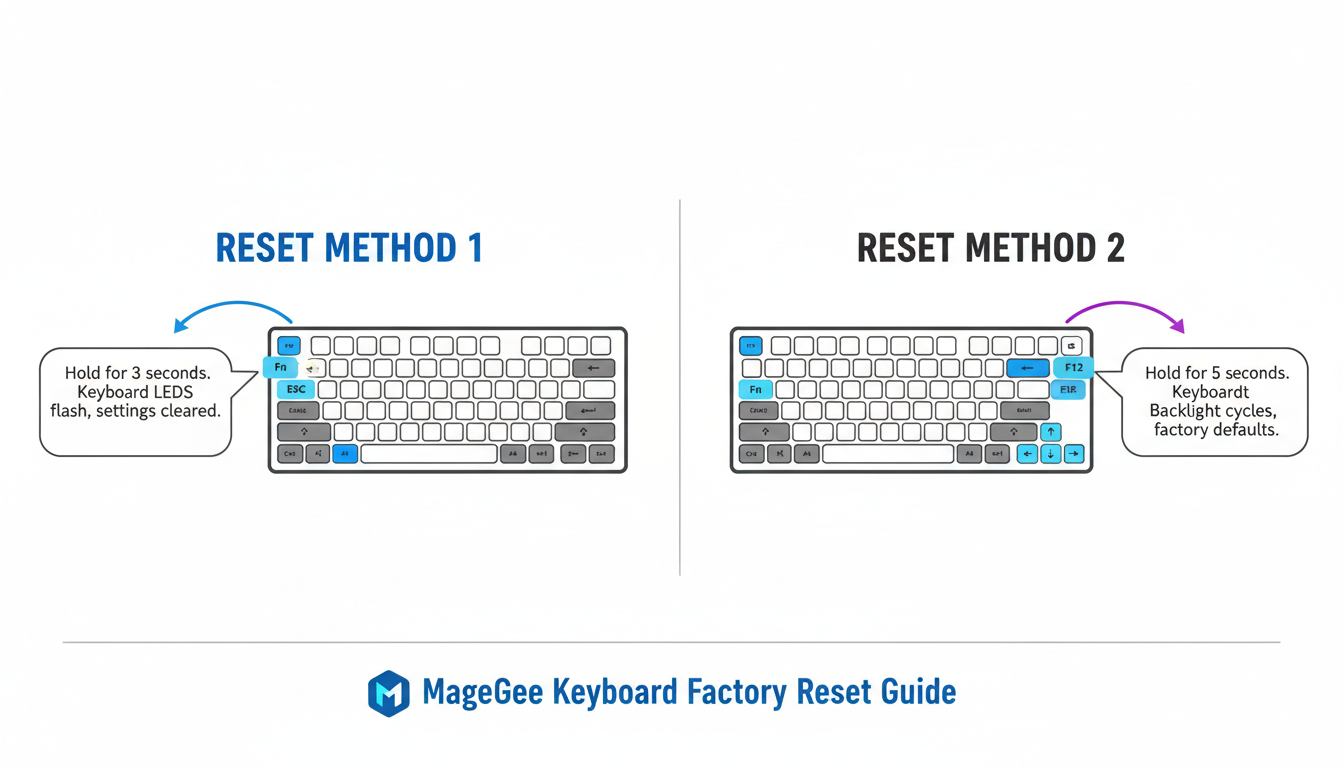
Analysis: General Factory Reset Procedure for Most MageGee Keyboards
Model-Specific Reset Methods & Advanced Procedures
While standard shortcuts work for the majority of the product line, newer or feature-rich MageGee keyboards may utilize unique reset procedures to accommodate their advanced lighting and macro capabilities. If the common “Fn + Esc” method doesn’t yield results, your specific model likely requires a different approach.
Be on the lookout for these potential variations:
- Dedicated Reset Button: Inspect the underside of your keyboard. Some models feature a small pinhole reset button; gently press and hold this with a paperclip for a few seconds to initiate a factory reset.
- Alternative Key Combinations: Certain series respond to different inputs. Common alternatives include holding Fn + Spacebar or pressing Fn + Left Ctrl + Right Ctrl simultaneously for 3–5 seconds.
- Software Reset: If your keyboard supports dedicated MageGee driver software, check the settings menu. There is often a “Restore Factory Defaults” option directly within the interface.
For the most precise instructions, always consult your specific user manual. If you have misplaced the physical copy, visit the official MageGee website or search online for “MageGee [Your Model Number] Manual” to find the exact key map for your device.
Post-Reset Steps: Testing, Re-Customization, and Firmware Updates
Once your MageGee keyboard has been successfully reset, it is crucial to systematically verify its performance and restore your preferred settings. Do not immediately re-apply complex macros or custom profiles. Instead, start with the default state to isolate any lingering hardware issues.
- Reconnect and Test Basic Functionality: Plug the keyboard directly into your computer’s USB port. Open a text editor or a keyboard testing tool to ensure every key registers correctly, paying special attention to keys that were previously unresponsive.
- Driver Verification: While most MageGee keyboards are plug-and-play, specific models (like the Sky or Captain series) may benefit from dedicated drivers. Visit the official MageGee support page to download and reinstall the latest drivers if applicable.
-
Re-Customize Settings: Restore your lighting and shortcuts one by one.
- On-Board Shortcuts: Use common combinations like
Fn + InsorFn + Arrow Keysto adjust backlight modes and brightness. - Software Customization: If your model supports MageGee’s utility software, launch it to re-bind keys or record macros.
- On-Board Shortcuts: Use common combinations like
- Firmware Checks: Finally, check for firmware updates on the manufacturer’s website. Applying the latest firmware patch ensures your device has the most recent bug fixes, preventing future glitches.
Troubleshooting: When Your MageGee Keyboard Won’t Reset or Functions Incorrectly
If a factory reset hasn’t resolved your issue—or if your keyboard is acting even stranger after the attempt—don’t panic. Most persistent “glitches” are often simple communication errors between the hardware and your computer. Before assuming your device is broken, walk through these targeted troubleshooting steps to isolate the problem.
- Verify the Key Combination: Timing is critical. For most MageGee models, you must hold Fn + Esc (or Fn + Spacebar on some compact units) for a full 3–5 seconds until the backlight flashes. If this fails, try the alternative “deep reset” method found on some specific PCB versions: hold Fn + Esc, then while holding them, press F1, F3, and F5 sequentially.
- Rule Out Power & Port Issues: Keyboards can behave erratically if they aren’t receiving stable power. Unplug the keyboard and test it in a different USB port—preferably one directly on the motherboard (rear panel) rather than a front case port or USB hub.
- Restart Your System: It sounds cliché, but a “soft lock” in your operating system’s USB drivers can prevent a reset command from registering. Reboot your computer with the keyboard unplugged, then reconnect it once Windows has fully loaded.
- Check for Driver Conflicts: Uninstall the keyboard driver in Windows “Device Manager” (under Keyboards) and restart your PC to force a fresh driver installation. Ensure no other keyboard software (like generic macro tools) is running in the background.
- Address Firmware Issues: Visit the official MageGee website to check if a specific driver or firmware update is available for your model. Warning: Only install firmware explicitly matched to your exact model number to avoid “bricking” the device.
When to Suspect Hardware Failure
If you experience chattering (a single key press registers double), dead LED zones that persist after a reset, or a specific column of keys not working, you likely have a physical hardware switch or PCB failure rather than a software glitch.
Contacting MageGee Support
As a last resort, contact MageGee customer service at [email protected]. To speed up the warranty or support process, ensure you have the following ready before you email:
- Order Number: From Amazon, Newegg, or the specific retailer.
- Model Number: Usually found on the sticker on the back of the keyboard (e.g., MK-Storm, Star 75).
- Video Evidence: A short video clip clearly showing the malfunction (e.g., keys not lighting up or not registering on a key-tester website).
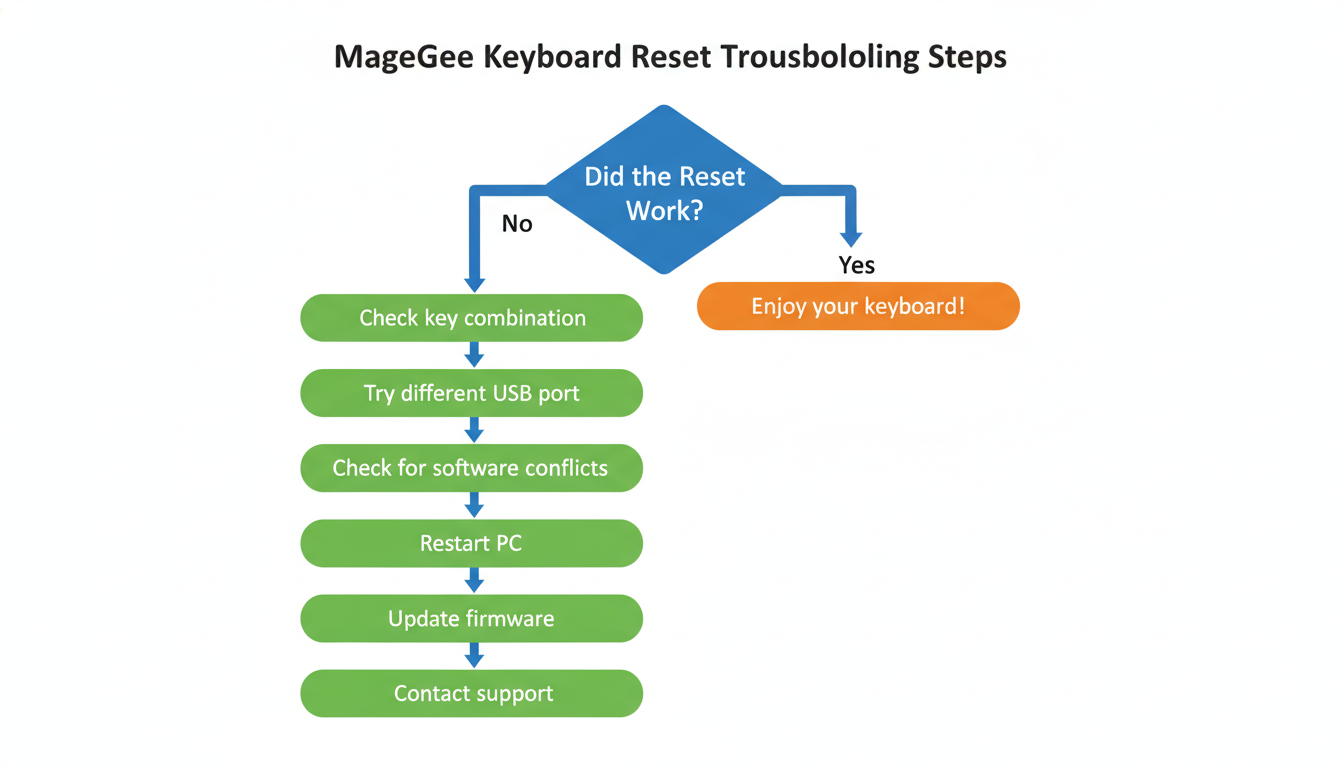
Analysis: Troubleshooting: When Your MageGee Keyboard Won’t Reset or Functions Incorrectly
Conclusion: Master Your MageGee Keyboard’s Potential
Mastering the factory reset process for your MageGee keyboard is more than just a technical fix; it is an essential skill for maintaining the longevity and peak performance of your peripheral. Whether you are dealing with unresponsive keys, lighting glitches, or accidental remapping, a simple reset is often the most effective solution to get you back on track.
As we have explored, the procedure is generally user-friendly, but attention to detail is paramount. Keep these core takeaways in mind:
- Identify Your Model: The specific combination of keys—whether it’s Fn + Esc, Fn + Spacebar, or a more complex sequence—depends entirely on your specific model (e.g., MK-Storm, MK-Star, or TS91).
- Consult the Manual: Always verify the reset command with your user manual or this guide to avoid unintended setting changes.
- Troubleshooting First: Use a reset as a primary troubleshooting step before assuming hardware failure.
Do not be intimidated by the technical aspect of maintaining your gear. With this guide as your reliable resource, you can confidently manage your keyboard’s settings. Ultimately, a well-maintained keyboard translates to a superior user experience, ensuring that every keystroke remains crisp and responsive, whether you are climbing the leaderboards in a competitive game, coding a complex project, or simply typing out an email.
FAQ: Your MageGee Keyboard Reset Questions Answered
Troubleshooting your mechanical keyboard can be confusing. Here are concise answers to the most common questions about the reset process:
- What exactly does a factory reset do? It wipes the onboard memory, erasing all custom lighting effects, macro recordings, and key remappings, returning the device to its original “out-of-the-box” state.
- Will a reset fix all problems? No. It is excellent for resolving software glitches—like frozen lights or input lag—but it cannot fix physical issues like liquid damage or broken switches.
- Do I need to re-install drivers? Generally, no. MageGee keyboards are plug-and-play; your operating system will automatically recognize the device once it reconnects.
- Is it safe to reset frequently? Yes. Resetting is safe and will not harm the hardware, though it is only necessary when you encounter bugs or want to clear settings.
- What if it becomes unresponsive after a reset? Unplug the USB cable, wait 10 seconds, and plug it into a different USB port to force the computer to re-detect the device.
- How do I know it was successful? The key indicator is the backlight: the LEDs will typically flash repeatedly or cycle through colors to signal completion.
- Can I selectively reset settings? No. The factory reset is an “all-or-nothing” command that clears the entire configuration.
Conclusion
Factory resetting your MageGee keyboard is a simple yet powerful step to resolve most performance glitches, lighting anomalies, and unresponsive key issues. By reverting the device to its default factory settings, you can clear out conflicting configurations and restore optimal functionality without the need for complex software.
Remember that while the universal Fn + Esc or Fn + Spacebar combinations work for the majority of models, specific layouts like the 60% or TKL versions might require slight variations. Always ensure your connection is stable before attempting a reset, and treat this guide as your go-to resource for maintaining a responsive and reliable typing experience.
Frequently Asked Questions (FAQ)
1. What is the universal shortcut to factory reset most MageGee keyboards?
For most MageGee models (including the MK-Storm and MK-Box), the most common reset method is to press and hold Fn + Esc for approximately 3 to 5 seconds. The keyboard backlight will typically flash to confirm the reset is complete. If this doesn’t work, try holding Fn + Spacebar for the same duration.
2. Why are my WASD keys acting like arrow keys?
This is a common feature known as “WASD Mode” meant for gaming. You likely activated it by accident. To fix it, simply press Fn + W once. This allows you to toggle the function of the WASD keys back to standard typing mode immediately without needing a full factory reset.
3. My keyboard backlight is off or stuck. Will a reset fix this?
Yes, a factory reset is often the best fix for lighting glitches. However, before resetting, ensure you haven’t accidentally turned the brightness down completely. Try pressing Fn + Up Arrow to increase brightness. If the lights remain unresponsive, perform the factory reset (Fn + Esc) to restore the default lighting profile.
4. Do I need to install specific drivers for my MageGee keyboard?
Generally, no. Most MageGee mechanical keyboards are designed to be plug-and-play, meaning they work immediately upon connection without external drivers. However, if your model supports advanced RGB customization or macro programming, you may need to download specific software from the official MageGee website.
5. What should I do if the factory reset doesn’t resolve my issue?
If a reset fails to fix the problem, inspect your hardware. Try using a different USB-C cable, connecting the keyboard to a different USB port, or testing it on another computer to rule out PC-specific issues. If the problem persists, the keyboard may have a hardware defect, and you should contact MageGee customer support for warranty assistance.
0 comments