
There is nothing quite as frustrating as finishing a perfectly crafted sentence, reaching for the question mark, and… nothing happens. Or worse, your cursor suddenly jumps up a line because your keyboard thinks you pressed the “Up” arrow. If you own the Royal Kludge RK61, this specific headache is practically a rite of passage. While the compact 60% layout is fantastic for saving desk space and achieving that minimalist aesthetic, it comes with a steep learning curve regarding function layers. Suddenly finding yourself unable to punctuate a simple question can make you panic, leading you to believe your switch is broken or the PCB has failed.
Before you start searching for a replacement or tearing out keycaps, take a deep breath. In almost every case, your hardware is perfectly fine. The RK61 is notorious for accidentally locking users into specific modes where the primary functions of keys—specifically the question mark and forward slash—are swapped with arrow keys or secondary commands. In this ultimate troubleshooting guide, we are going to decode the confusing world of RK61 shortcuts. Whether you accidentally triggered the arrow key lock or need a full factory reset, we will walk you through every step to get your punctuation back on track.
Introduction: The Frustration of a Silent ‘?’
There are few things more annoying than reaching for a key in the heat of a typing session, only to be met with silence. You hit the key again, harder this time, but nothing happens. When that key is the question mark—essential for inquiries, coding, and casual chatting—the disruption is real. For owners of the Royal Kludge RK61, this issue can be particularly baffling.
The RK61 is widely celebrated in the mechanical keyboard community for its compact 60% layout, affordability, and versatile wireless connectivity. However, its multi-layer functionality often leads to confusion, where the question mark key seems to “break” when it’s actually just locked behind a function layer.
Don’t worry; your keyboard likely isn’t broken. This guide is designed to be your one-stop solution to get you typing normally again. We will walk you through:
- Layer unlocking shortcuts to fix accidental mode switches.
- Software configurations to reset key mappings.
- Hardware troubleshooting for the rare cases of physical switch failure.
Whether it’s a simple key combination or a deeper fix, we’ll help you restore your RK61’s full voice so you never have to leave a question hanging again.
Initial Checks: The Basics Before Diving Deep
Before you start uninstalling drivers or searching for replacement switches, take a moment to perform the “obvious” checks. Often, what feels like a critical hardware failure is actually a minor glitch or a physical obstruction. Start with the universal tech solution: restart your computer. A fresh boot can clear out temporary software conflicts or background processes that might be interfering with your input.
If a reboot doesn’t solve it, run through this quick checklist:
- Inspect for Physical Obstructions: Look closely at the problematic key. Dust bunnies, crumbs, or pet hair can physically block the switch from making contact. A quick blast of compressed air is often enough to dislodge debris.
- Test Across Applications: Try the key in a web browser, a text document, and a game. If the key works in Notepad but fails in Discord, the issue is likely software-specific rather than hardware-related.
- Verify Connections: For wired keyboards, ensure the USB cable is firmly plugged in; try swapping to a different USB port just to be safe. For wireless models, check that your Bluetooth is properly paired and the battery has a sufficient charge.
- Reseat the Keycap: If you are using a mechanical keyboard, gently remove the keycap and press it back down firmly. Sometimes, a keycap sitting unevenly can prevent the switch from fully engaging.
Software & Driver Solutions: Unlocking the Digital Fixes
Often, what looks like a broken switch is actually a software misconfiguration. Start by verifying your operating system’s input settings.
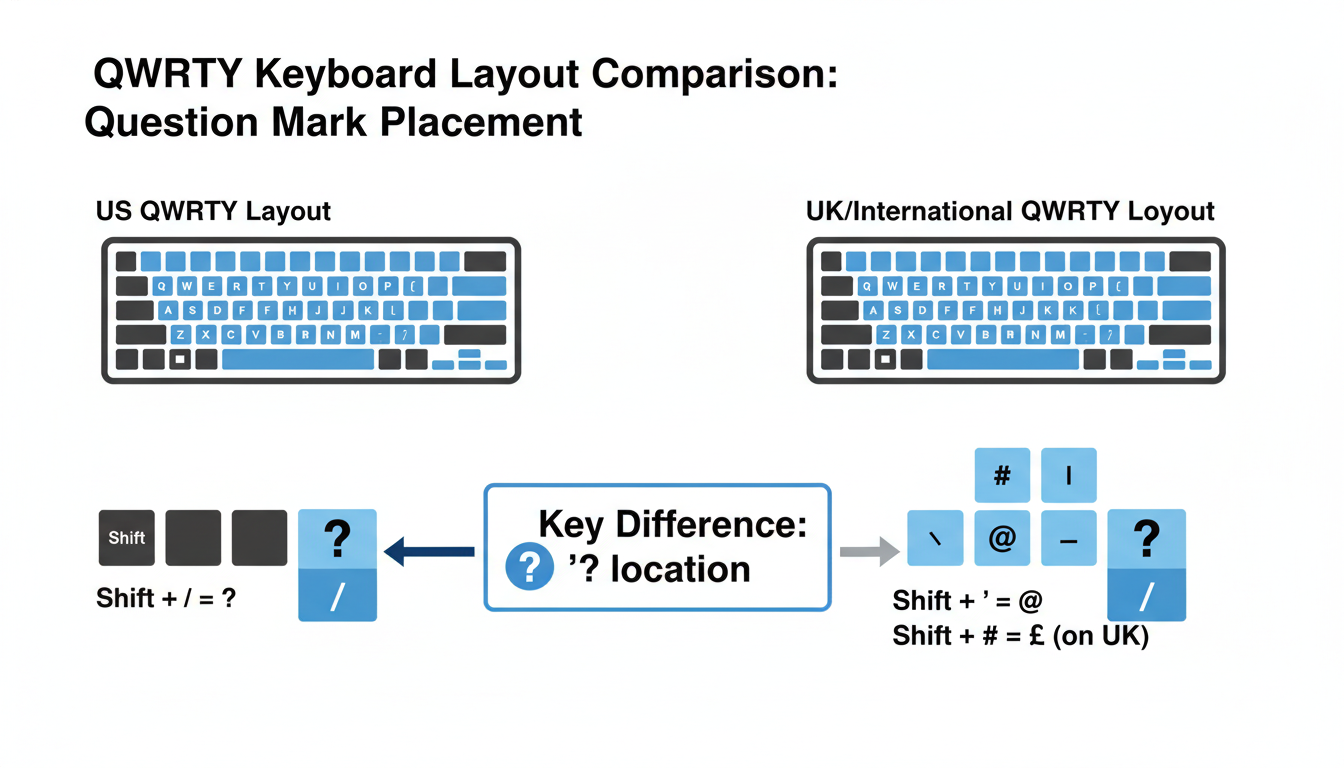
1. Correcting Keyboard Layouts
If your ? key types a É, your region settings likely don’t match your physical keyboard (e.g., using a UK layout on a US ANSI keyboard).
- Windows 10/11: Go to Settings > Time & Language > Language & Region. Click the “…” next to your language, select Language options, and ensure the correct keyboard (e.g., US QWERTY) is added under “Keyboards.” Remove any incorrect entries.
- macOS: Navigate to System Settings > Keyboard. Under “Text Input,” click Edit. Use the + button to add your specific layout (e.g., “U.S.”) and remove others to prevent accidental switching.
2. Driver & Firmware Updates
Corrupt drivers or outdated firmware can cause ghosting or unresponsive keys.
- Reinstall Drivers (Windows): Open Device Manager, expand “Keyboards,” right-click your device, and select Uninstall device. Restart your PC; Windows will automatically reinstall a fresh driver.
- RK61 Firmware: Visit the official Royal Kludge software page. Crucial: Check your keyboard’s PID in Device Manager (Details > Hardware IDs) before downloading to avoid “bricking” the device. Always perform updates in wired mode with the back switch set to OFF.
Pro Tip: If keys repeat uncontrollably, check Accessibility Settings to ensure “Sticky Keys” or “Filter Keys” are disabled.
Analysis: Software & Driver Solutions: Unlocking the Digital Fixes
Key Remapping & Macro Interference: Restoring Default Behavior
If your question mark key isn’t behaving as expected, the issue often lies within the RK61’s “Fn layer” or an accidental mode switch. Because the RK61 is a compact 60% keyboard, the ? / key shares its position with the Up Arrow. If you find yourself typing an arrow command instead of a question mark (or vice versa), you have likely toggled “Arrow Mode.”
Before assuming a hardware defect, try these steps to restore default behavior:
- Toggle Arrow Mode: Press Fn + Enter. This is the standard shortcut to switch the bottom-right cluster between arrow keys and standard text keys.
- Factory Reset: If the behavior persists, perform a hard reset to clear temporary memory glitches. Hold Fn + Spacebar for 3–5 seconds until the keyboard’s backlight flashes. This returns the board to its factory state.
- Check Official Software: If you use the Royal Kludge software, verify that no macros have been accidentally assigned to the key. Open the software, select the key, and click “Restore” or “Default” to wipe any custom mapping.
- Disable Third-Party Tools: Ensure background scripts from tools like AutoHotkey aren’t intercepting your keystrokes.
Restoring these defaults usually resolves the conflict, allowing you to type a question mark with the standard Shift + / combination once again.
Hardware Troubleshooting: The Physical Inspection & Swap
If software resets haven’t resolved your issue, a physical inspection is the next logical step. Dust, debris, or a physically damaged switch can often prevent a key from registering.
Step 1: Inspecting the Key Switch
Start by removing the keycap of the problematic key. Using the wire keycap puller included with your RK61, gently spread the wires over the cap and pull straight up. Once removed, visually inspect the switch stem (the colored cross-shaped part) for any cracks, liquid residue, or large dust bunnies that might be obstructing movement.
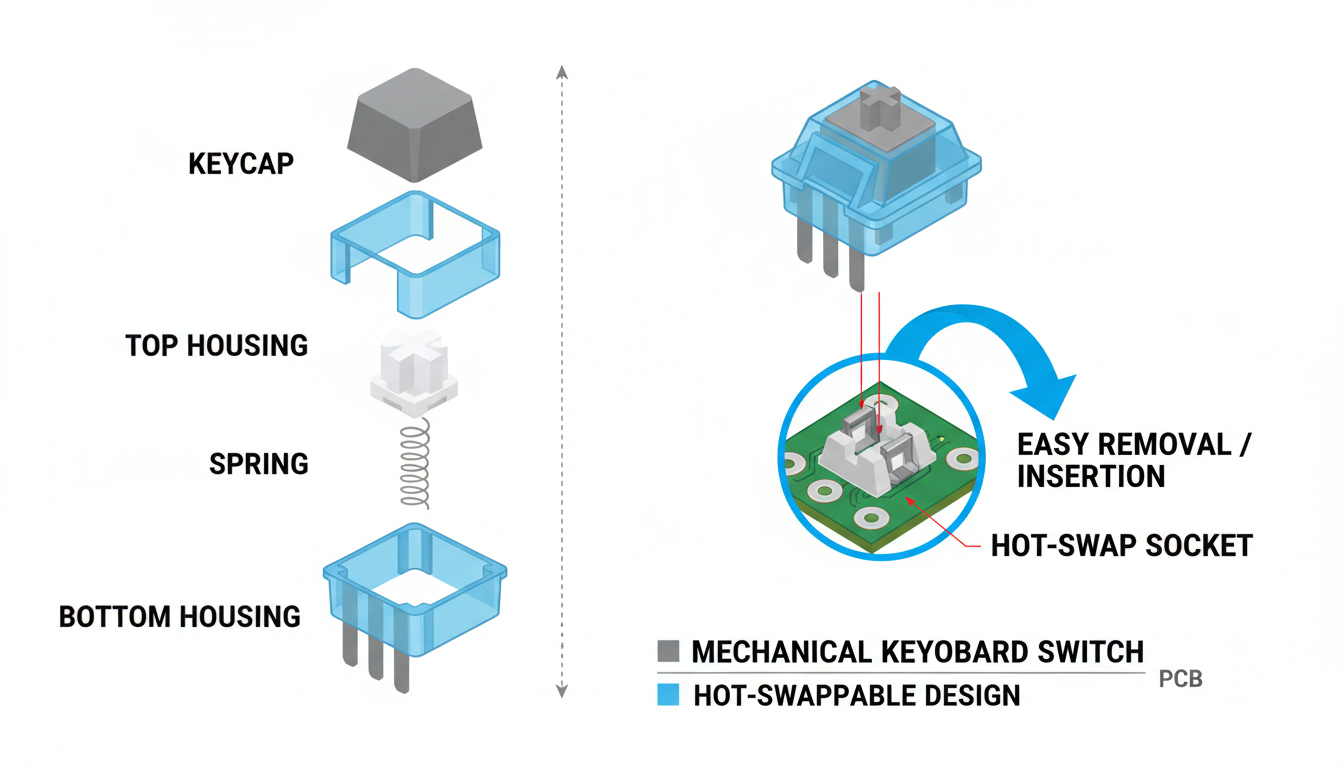
Step 2: Hot-Swappable vs. Soldered Switches
Before proceeding, it is critical to confirm your specific model. Most modern RK61 keyboards are hot-swappable, meaning switches can be pulled out without tools like a soldering iron. However, older variations may have soldered switches. If your box did not include a metal switch puller, or if the switch feels immovable, do not force it—you likely have a soldered unit and should stop here to avoid damaging the PCB.
Step 3: The Swap Test (Hot-Swap Only)
If your board is hot-swappable, perform a “swap test” to isolate the failure:
- Remove the Switch: Use the metal switch puller to grip the switch housing. Squeeze the small tabs on the top and bottom of the switch to release the lock, then pull straight upward.
- Swap with a Working Key: Remove a switch from a rarely used key, such as Scroll Lock or End, and insert it into the problematic slot. Ensure the two metal pins on the bottom are perfectly straight before pushing it in until it clicks.
If the replacement switch works, your original switch was faulty. If the key still fails to register, the issue likely lies with the keyboard’s PCB socket itself.
Analysis: Hardware Troubleshooting: The Physical Inspection & Swap
Advanced Diagnostics & When to Seek Professional Help
If basic troubleshooting hasn’t revived your key, the issue may lie deeper within the hardware. For users comfortable with electronics, a continuity test using a multimeter can verify if the switch mechanism itself is electrically dead. Disclaimer: Only attempt this if you are experienced with handling circuit boards. Improper testing can cause further electrical damage or void your warranty.
For non-hot-swappable boards, inspect the PCB (Printed Circuit Board) around the faulty switch. Look for visible damage, scorch marks, or cold solder joints (connections that appear cracked or dull rather than shiny).
When to Stop:
If you identify physical board damage or if the repair requires desoldering skills outside your comfort zone, do not force a fix. Instead, take these steps:
- Contact RK61 Customer Support for official guidance.
- Check if your device is eligible for a warranty replacement.
- Consult a professional electronics repair service.
Temporary Workarounds:
While you wait for a repair or replacement, you can stay productive with these quick fixes:
- Remap the Key: Use keyboard software to assign the essential function to a rarely used key (e.g., swapping ‘Scroll Lock’ for the broken key).
- On-Screen Keyboard: Enable this Windows/macOS accessibility feature to click the missing key manually.
Prevention and Maintenance Tips
Keeping your keyboard in top shape isn’t just about fixing problems when they arise—it’s about preventing them altogether. A little proactive care can significantly extend the lifespan of your peripheral and ensure every keystroke registers perfectly.
Regular Cleaning is Key: Dust and debris are the silent killers of switch responsiveness. Make a habit of using compressed air once a week to blow out crumbs and particles from between the keys. For a deeper clean, carefully remove the keycaps every few months to wipe down the switch plate, ensuring you use a proper keycap puller to avoid damaging the stems.
- Avoid Spills: Liquid damage is often irreversible. Keep open containers away from your desk to prevent sticky keys and electrical shorts.
- Handle with Care: While mechanical switches are durable, constant mashing or aggressive typing can wear down internal components and stabilizers prematurely. Treat your gear gently to maintain tactile consistency.
- Stay Updated: Hardware issues can sometimes be software problems in disguise. Regularly check manufacturer software to keep your drivers and firmware updated, ensuring optimal performance and preventing phantom glitches.
By incorporating these simple habits into your routine, you can stop malfunctions before they start and enjoy a smooth, reliable typing experience for years to come.
Conclusion: Typing Without Interruption
Mastering the compact layout of a 60% mechanical keyboard like the Royal Kludge RK61 often involves a learning curve, but technical glitches shouldn’t be part of the equation. By following the steps outlined in this guide, you have hopefully identified the root cause of your unresponsive question mark key and restored your typing flow.
Remember, the key to successful troubleshooting is a systematic approach rather than random guessing. We explored several critical areas to get your keyboard back on track:
- Layer Toggles: Verifying you aren’t accidentally locked into arrow-key mode (often resolved via Fn + Right Shift or Fn + Enter).
- Software & Firmware: Ensuring your drivers are up to date via the RK software and performing a factory reset to clear internal bugs.
- Physical Hardware: Checking the hot-swappable sockets for bent pins or debris that might be blocking the signal.
Troubleshooting requires patience and precision, so take your time testing each method before moving to the next. We hope one of these solutions has resolved the issue, allowing you to get back to gaming or working without frustration. Did a specific tip work for you, or did you discover a different workaround? Please share your successful fixes or any lingering questions in the comments section below so we can help the community type without interruption.
Frequently Asked Questions (FAQ)
Encountering issues with your Royal Kludge RK61? Here are the quick fixes for the most common questions.
- How do I pair my RK61 via Bluetooth?
-
First, verify the switch on the back is set to ON and B.
- Long-press Fn + Q (or W/E) for 3 seconds until the key flashes.
- Select “RK61” on your device’s Bluetooth menu.
- To switch between paired devices, short-press Fn + Q, W, or E.
- Why are my arrow keys not working?
- You likely toggled the secondary function layer. Press Fn + Enter to switch between the arrow key layer and the default slash/menu key function. If your number keys are typing F1-F12 instead of numbers, press Fn + Left Ctrl to unlock them.
- How do I factory reset the keyboard?
- If your keyboard is acting strangely or not responding, hold Fn + Spacebar for roughly 3-5 seconds. The keyboard backlights will flash, indicating the reset is complete.
- How do I know if my RK61 is charging?
- When plugged in, the Spacebar LED will typically glow red. It will turn off or change to green once the battery is fully charged. You can also check the battery level by pressing Fn + Enter (on some models, number keys 1-0 will light up to show percentage).
Conclusion
In summary, if your RK61 question mark key is not working, the issue is almost always that the keyboard is stuck in “Arrow Key Mode.” Because the RK61 is a 60% compact keyboard, it layers multiple functions onto single keys. When the slash/question mark key (/?) behaves like the “Up Arrow,” it prevents you from typing punctuation normally.
For the vast majority of users, the simple fix is to toggle this mode off by pressing Fn + Enter. If that doesn’t work due to firmware differences, secondary shortcuts like Fn + Left Ctrl or Fn + Right Shift usually resolve the conflict. By understanding these layer toggles, you can regain full typing functionality without losing the utility of a compact layout.
Frequently Asked Questions (FAQ)
1. Why does my question mark key highlight text instead of typing?
This happens because your keyboard is in “Arrow Mode.” When active, the /? key functions as the Up Arrow. Pressing Shift + /? effectively sends a “Shift + Up Arrow” command, which is the universal shortcut for highlighting text upwards. Press Fn + Enter to exit Arrow Mode.
2. What is the quickest way to type a question mark without switching modes?
If you want to stay in Arrow Mode but need to type a single question mark, you can usually press Fn + Shift + /?. This temporarily accesses the punctuation layer for that single keystroke without disabling your arrow keys.
3. I pressed Fn + Enter but it didn’t fix the issue. What now?
Royal Kludge has released multiple versions of the RK61 with different firmware. If Fn + Enter doesn’t work, try pressing Fn + Left Ctrl. This combination often swaps the primary and secondary function layers on older or specific firmware units.
4. How do I factory reset my RK61 if the keys are totally messed up?
You can perform a quick factory reset by holding Fn + Spacebar for about 3–5 seconds until the keyboard backlight flashes. This will return all layers and toggles to their default settings, which often solves persistent mapping glitches.
0 comments