
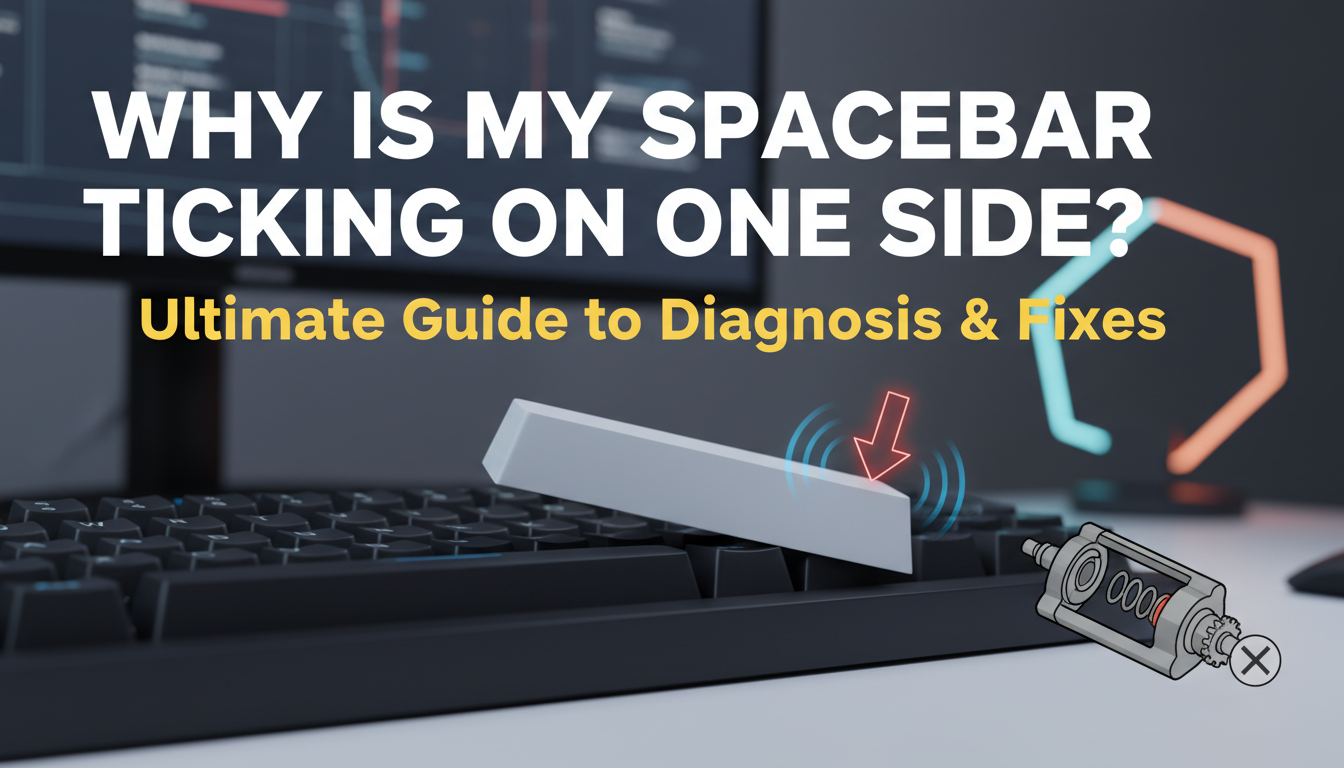
There is nothing quite as satisfying as the rhythmic “thock” of a perfectly tuned mechanical keyboard—and nothing as maddening as a spacebar that refuses to play along. You know the feeling: you are in the flow, typing away, when you hear it. A high-pitched tick or rattle, but only when you hit the left or right side. It’s a small noise, yet it breaks your immersion completely, turning a premium typing experience into a test of patience.
If you have found yourself repeatedly tapping the edges of your spacebar trying to diagnose the sound, you aren’t alone. This dreaded “ticking” is one of the most common grievances in the mechanical keyboard hobby. It usually points to an imbalance in the stabilizer wire or a lack of proper lubrication, but pinning down the exact culprit can feel like a guessing game. Whether it’s a warped keycap, a bent wire, or a loose housing, even the most expensive builds aren’t immune.
The good news? It is almost always fixable. In this guide, we will walk you through exactly why your spacebar is ticking on just one side and provide step-by-step methods to silence it for good. From quick hacks to professional tuning techniques like the “Holee Mod” or wire balancing, get ready to restore that deep, solid sound you love.
Introduction: The Annoying Rattle of a One-Sided Spacebar
Picture this: you are deep in the zone, typing out an important document or maneuvering through a high-stakes game. Your fingers are flying, but every time your thumb strikes the right side of the spacebar, the rhythm is broken. Instead of a solid, satisfying “thock,” you are greeted by a high-pitched tick or a loose, metallic rattle. It is a subtle torture, but for anyone who values a clean typing experience, it is enough to drive you crazy.
As the largest and most frequently actuated key on your board, the spacebar is the anchor of your workflow. When it behaves inconsistently—feeling solid on one end but sounding like a maraca on the other—it disrupts both your speed and your sanity. This usually points to a physical imbalance within the stabilizers or the keycap itself.
The purpose of this guide is to help you silence the noise for good. We will cover:
- Diagnosing the root cause, from warped keycaps to bent stabilizer wires.
- Practical solutions applicable to both mechanical and membrane keyboards.
The good news? You likely don’t need a new keyboard. With a few simple tweaks, we can eliminate that one-sided wobble and get your spacebar sounding smooth and consistent again.
Understanding Your Spacebar’s Anatomy: More Than Just a Key
At first glance, the spacebar seems simple—just the longest piece of plastic on your desk. However, beneath that surface lies a complex assembly designed to defy physics. Because the key is so long, pressing the far left edge would naturally cause the right side to pivot upwards like a seesaw. To prevent this, the spacebar relies on a delicate harmony between three distinct components.
- The Keycap: The visible interface you touch, determining the texture and weight of the press.
- The Central Switch (or Dome): Located dead center, this is the engine that actually registers the signal. On membrane keyboards, this is usually a rubber dome over a circuit sheet, whereas mechanical keyboards utilize a discrete switch spring mechanism.
- The Stabilizer: The critical infrastructure. This mechanism anchors the left and right ends of the keycap to the keyboard plate or PCB to ensure a perfectly level descent.
Stabilizers are often the culprit behind rattling or one-sided ticking. The two most common designs are Cherry style, which uses “satellite” stems that look like mini-switches, and Costar style, which uses exposed metal wires clipped directly into the keycap. Regardless of the type, the stabilizer must move in perfect sync with the central switch; otherwise, the key feels mushy or sounds hollow.
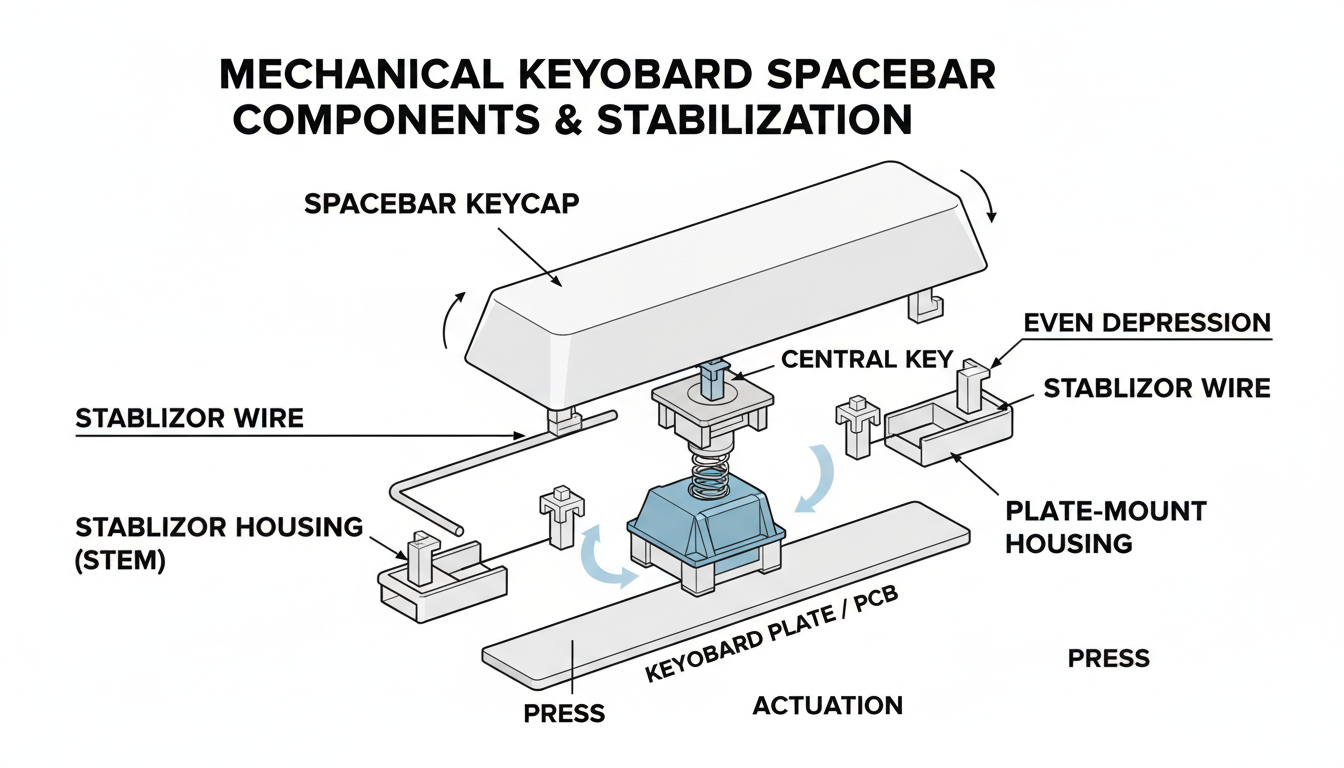
Analysis: Understanding Your Spacebar’s Anatomy: More Than Just a Key
The Usual Suspects: Common Causes of One-Sided Ticking
Before you tear your keyboard apart, it helps to know exactly what you’re looking for. A ticking spacebar is rarely a mystery; it is usually a mechanical cry for help from one of these four culprits:
- Stabilizer Issues: This is the most frequent offender. A bent stabilizer wire will tap against the internal housing rather than rotating smoothly, causing a rhythmic tick. Similarly, a lack of lubrication (dry spots), a dislodged wire clip, or a misaligned housing can create metal-on-plastic contact that ruins your acoustics.
- Dirt and Debris: It’s not just about hygiene; it’s about physics. Small particles like dust, hair, or food crumbs can lodge themselves under one side of the stabilizer or keycap. These obstructions create a physical barrier that clicks or crunches when the key is compressed.
- Keycap Problems: Not all plastic is created equal. A warped spacebar (common with PBT keycaps) pulls unevenly on the stabilizers, lifting one side slightly. loose or cracked stems can also fail to grip the stabilizer insert tightly, leading to unnecessary play and rattling.
- Switch & Spring Anomalies: While rarer, the central switch can sometimes take the blame. Internal damage, such as a misaligned spring or a loose leaf inside the housing—especially in hot-swappable boards—can manifest as a sound that mimics a stabilizer tick.
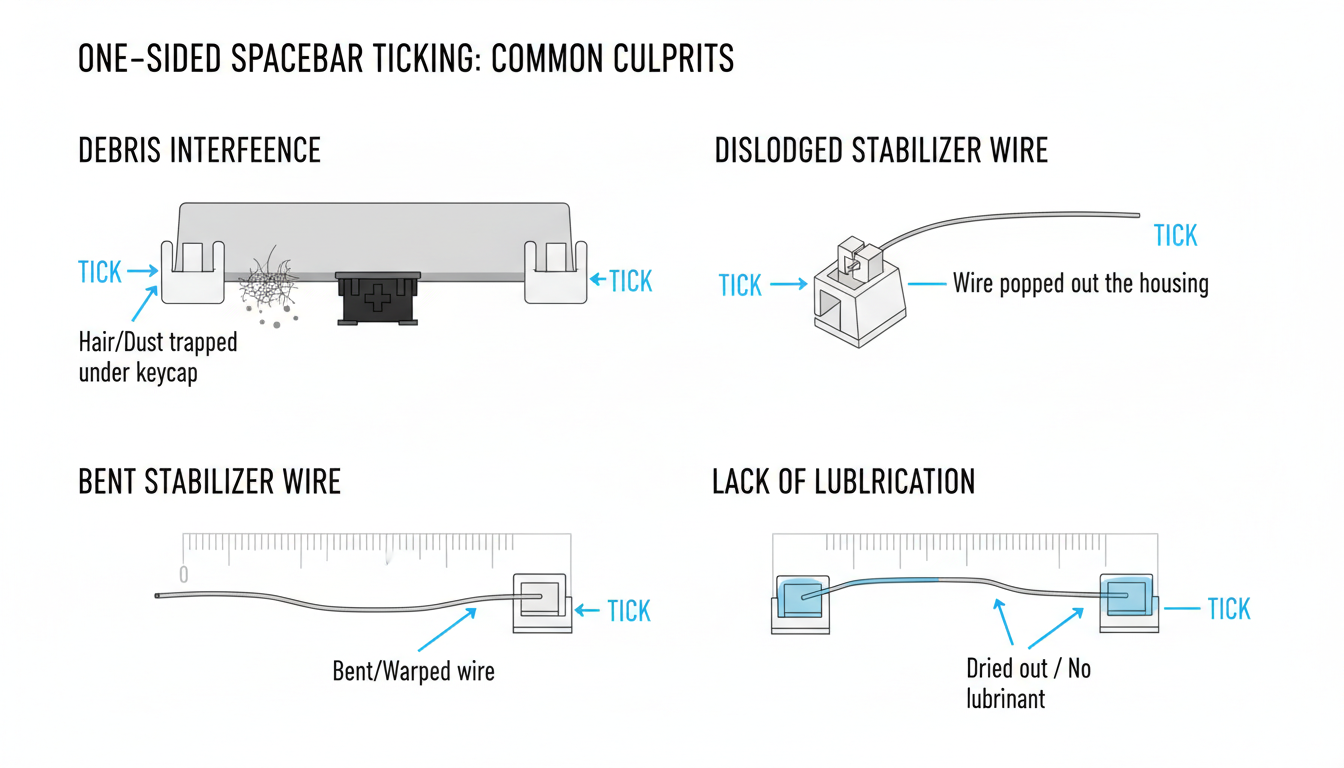
Analysis: The Usual Suspects: Common Causes of One-Sided Ticking
Diagnostic Steps: Pinpointing the Exact Source of the Tick
Before attempting any repairs, you must identify exactly which component is misbehaving. Follow this systematic approach to isolate the culprit:
- Initial Observation: Start by typing normally, then slow down to a deliberate tap. Press the far left, the far right, and the center of the spacebar. Note the specific location of the sound. Is the tick unilateral (occurring only on one side) or consistent across the entire bar?
- Safe Keycap Removal: Using a wire keycap puller, gently wiggle the spacebar upward to detach it. Exercise extreme caution; yanking the keycap vertically with force can rip the stabilizer stems right out of their housing.
- Visual Inspection: Shine a light into the exposed mechanism. Look for physical obstructions like crumbs, hair, or debris. Inspect the keycap’s underside for cracked stems and verify that the stabilizer wire is still clipped securely into its housing.
- The Tactile Test: With the keycap removed, use a probe or tweezers to gently tap the stabilizer stems (the “dummy” switches on the sides) up and down. If these rattle or tick when moved independently, the stabilizers are the issue. If the noise only occurs when pressing the central switch, the problem lies within the switch leaf or spring.
- Re-seat and Verify: A tick can sometimes be caused by a loose fit. Re-install the spacebar, pressing firmly on the center and both ends to ensure it snaps fully onto the stabilizers, then test again.
Step-by-Step Solutions: How to Fix Your Ticking Spacebar
Once you have identified the culprit, use these targeted fixes to silence that annoying tick and restore a smooth typing experience.
- Deep Clean: Debris is often the primary cause of noise. Remove the spacebar and blast the area with compressed air to dislodge crumbs. for sticky residue, gently clean the stabilizer stems and surrounding area using a small brush or a cotton swab dipped in high-percentage isopropyl alcohol.
- Re-seat the Stabilizer: If the stabilizer wire has popped out of its housing, the key will rattle significantly. Press the wire firmly back into its plastic clip or housing until you hear a audible snap or click, ensuring it is fully engaged.
- Lubricate: Metal-on-plastic friction causes high-pitched ticking. Apply a small amount of Krytox 205g0 or dielectric grease to the ends of the wire and inside the stabilizer housing. Remember that less is more; start with a thin layer to avoid making the key feel mushy.
- Adjust or Replace the Keycap: Ensure the keycap is seated evenly on all switch stems. If the spacebar itself is warped (common with PBT plastic), it may lift the stabilizer wire. You can try testing with a spare keycap or replacing the warped unit entirely.
- Balance the Wire: A bent wire hits the PCB unevenly, creating noise. Place the wire on a perfectly flat surface (like a glass table or smartphone screen). If it wobbles, gently bend it back into shape until it lies perfectly flat.
Preventive Measures and Advanced Considerations
Maintaining a thocky, silent spacebar requires more than just a one-time lube job; it demands consistent care. To ensure your stabilizers remain rattle-free and smooth, consider the following maintenance habits:
- Regular Cleaning Routine: Dust and grit can work their way into stabilizer housings, degrading the lubricant and causing friction. Use compressed air weekly to dislodge debris before it builds up.
- Keyboard Hygiene: Crumbs are the arch-nemesis of smooth switch travel. Avoid eating over your peripherals and invest in a dust cover to protect the board when it is not in use.
- Proper Handling: When removing keycaps for cleaning, always use a dedicated wire keycap puller. Pull straight up or gently “walk” the spacebar off the stems. Yanking at an angle can snap delicate plastic stems or bend the stabilizer wire, permanently ruining the sound.
Finally, know When to Consider Professional Help. If you encounter severe internal damage, such as lifted pads on the PCB, snapped mounting clips, or complex issues with soldered stabilizers, DIY fixes may not suffice. If you are uncomfortable with desoldering or deep repair work, seeking a professional repair service or considering a replacement keyboard is often the safer, more cost-effective route.
Conclusion: Enjoy a Quieter, Smoother Typing Experience
Dealing with a ticking spacebar can feel like a major obstacle to keyboard nirvana, but as we’ve explored, it is rarely a permanent issue. With a little patience and the right approach, most of these rattling annoyances are easily resolvable. Whether the solution lay in balancing the stabilizer wire, applying the perfect amount of lubricant, or performing a Band-Aid mod, the effort you put in now pays dividends every time you sit down to work or play.
Never underestimate the impact of a well-tuned stabilizer. Since the spacebar is the most frequently actuated key, its performance sets the tone for your entire setup. A solid, silent spacebar ensures:
- Unbroken focus by eliminating distracting rattles.
- A consistent, satisfying feel across the entire board.
- Enhanced typing comfort and productivity during long sessions.
Don’t be discouraged if it takes a few tweaks to get it perfect; modding is an art form. We’d love to hear your success stories! Did these methods fix your tick, or do you have a unique tip to share? Leave a comment below and help the community.
Here is to reclaiming your sanity and enjoying a silent, smooth, and satisfying typing experience. Happy typing!
Frequently Asked Questions (FAQ)
Below are answers to the most common concerns regarding spacebar maintenance and repair.
-
Is a ticking spacebar a sign of serious damage?
Usually, no. A ticking sound is typically a minor mechanical annoyance caused by a slight imbalance in the stabilizer wire or a lack of lubrication. It is rarely a sign that the keyboard is electronically failing. -
Can I use household oil (like WD-40) to lubricate stabilizers?
Absolutely not. You should never use WD-40 or standard vegetable oils on a keyboard. These substances can chemically degrade the plastic components and eventually dry out, creating a sticky residue that attracts dust and grime. Always stick to specific keyboard lubricants like dielectric grease or Krytox. -
How often should I lubricate my stabilizers?
There is no strict schedule. Generally, you should only re-lubricate when an audible issue arises. Otherwise, refreshing the lube every **1–2 years** during a deep cleaning is sufficient. -
My spacebar feels mushy, not ticking. Is that related?
Likely not. Ticking is a stabilizer issue, whereas a “mushy” feeling is usually caused by the **switch** itself or a collapsing rubber dome (on membrane keyboards). The fixes for ticking will not solve mushiness. -
Can these fixes apply to laptop keyboards?
Laptop keyboards often use fragile scissor switches that are highly integrated and difficult to reassemble. While cleaning with compressed air is safe, we do not recommend attempting to disassemble laptop keys for stabilizer tuning, as you risk permanent damage.
Conclusion
Diagnosing a spacebar that ticks on one side can be frustrating, but the culprit is almost always a physical imbalance. As we’ve explored, the most common causes are a bent stabilizer wire, a warped keycap, or uneven lubrication inside the stabilizer housing.
By methodically testing your keycap for flatness and balancing your stabilizer wire on a flat surface, you can eliminate the mechanical root of the noise. Advanced techniques like the Holee Mod, Band-Aid Mod, or simply injecting dielectric grease with a syringe offer effective ways to cushion the impact and silence the tick. Remember, patience is key—tuning stabilizers is often a trial-and-error process, but the result is a deeply satisfying, thocky keystroke.
FAQ
Why does my spacebar only tick on the left (or right) side?
This uneven ticking usually happens because the stabilizer wire is not perfectly flat. If one “leg” of the wire is slightly bent upwards, it won’t rest flush against the housing floor. When you tap that specific side, the wire hits the plastic housing, creating a high-pitched tick. A warped keycap can also lift one side of the stabilizer stem, causing a similar effect.
Do I need to desolder my keyboard to fix a ticking spacebar?
Not always. If you have a hot-swappable keyboard, you can easily remove the switch and stabilizer to balance the wire. If your keyboard is soldered, you can try “lazy” fixes like using a syringe to inject thick lube (like dielectric grease) into the ticking side or sliding a small piece of band-aid under the wire without desoldering. However, for a permanent fix like wire balancing, desoldering is often required.
Can I use any type of lubricant to stop the ticking?
No, you should avoid standard thin oils or WD-40, which can damage plastics and won’t stay in place. For stabilizers, you need a high-viscosity lubricant that stays put. Dielectric grease or Krytox 205g0 are the gold standards because they are thick enough to cushion the wire and eliminate the metal-on-plastic impact noise.
Could the switch itself be causing the ticking sound?
While rare, it is possible for a switch to have leaf ping or spring crunch that sounds like a tick. To rule this out, remove your spacebar keycap and tap the switch stem directly. If the noise persists, swap the switch with another one from your board. If the noise stops, the switch was the issue; if the tick remains, the problem lies with the stabilizer or keycap.
0 comments